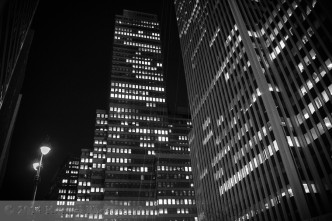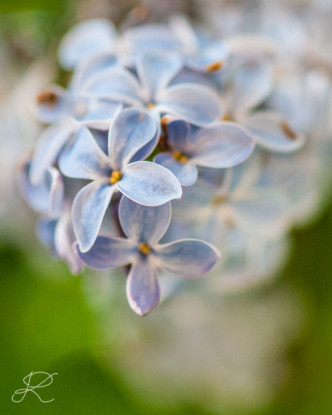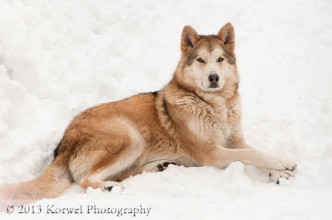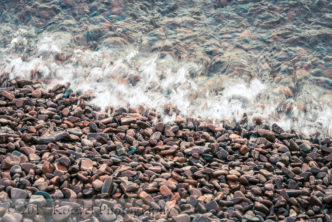
In follow up to yesterday’s post on David DuChemin newest e-book, “Safari- a monograph”, today’s image is using the same post-processing as some of safari images in the book. To achieve the effect, I took a photograph of the white rose from last weekend session around my mom’s garden. I did typical post on it, with curves and clarity slider, then turned it black and white and adjusted tones luminosity. And as a last step, I applied the Lightroom preset called Serengeti Chocolate, which accompanies the e-book.
I am one happy snapper. A two-day air picnic I went recently resulted in 3206 images. Let me share with you, how I dealt with so many files from the moment they were shot. And add on the side, that it took me a week to organize it all.
I have only two 8 Gb cards. It meant quick download in the field and formatting. When the card in the camera was getting full, I was just downloading them on one of the laptops we had with us, and used the other card for shooting. Not very good choice, because when the card was getting full, I was loosing a bit of time to change and format the card before getting back to shoot. Point for improvement here.
After the event, I had all the images in one folder on the computer. I used the driving time back home to import them all into Lightroom, keyworded with general description of the event.
The first look through the photos was used to find obviously out of focus, or badly composed images, with missing parts of planes for example. I was just browsing through in Grid view, and using Reject (X on keyboard) to mark unwanted images. At the same time, I created the Collection Set for the whole event, and Collections for each type of plane (in general terms, I divided my event into sub-sets of photos, so it is easier to pick the best, representative images for each subunit). I keyworded the images in Collections with additional keywords- I was able for example to batch add the plane type, colors etc.
The second look was already when all the images were placed in respective Collections. Here, I couldn’t use Reject anymore- the mark will not show in Folders view, so I wouldn’t be able to delete from disk unwanted images. I used rating of 1 (1 on keyboard) to mark those rejected images. At this step, I was checking each image magnified 1:1 for sharpness inspection. Also, I started to chose my picks. Again, I could have used Picked (P on keyboard) but it would not show in any other view of the Catalog or Folder, nor would I be able to make a Smart Collection of favorites. I used the Color Green instead (8 on keyboard, different colors are keyboard shortcuts 6 to 9). I believe the fact that Picked and Rejected images are not recognized in all views it is this one thing which changed from Lightroom 1.
After I was done, I went to Folder view, chose all the images marked with 1 and deleted them from hard drive. If I deleted them in the Collection view, they would be still visible on hard drive and in Lightroom.
At this point, when I have all unsharp, uninteresting images removed, it was probably high time to archive all the remaining images on the DVDs. I was left with less then a half of all images I shot. 1493 images, to be exact.
After that, me and my husband went and each chose its picks, the best, most interesting, representative images. From those, I made separate Collections to send out images to stock (mostly editorial), to personal gallery, Facebook, blog. I was down from 3206 to only 67 images, which is already a manageable amount for a post-processing. Most of those picks you can see up in the grid view from Lightroom.
Is your workflow similar to this? Would you do some of steps differently? Share your thoughts in the comments or link o your blog entry!
I want to come back to writing my impressions and experiences with stock photography. It is a month or so since I last mentioned it on blog. Mostly because it is how long it took me to come back to submitting anything there. The current count: iStock portfolio has 6 images, BigStockPhoto has 14. Shutterstock liked 4 out of 10, but they need to accept 7 on first submission and you need to wait a month before another try. It expired this week. The count should change through the week, as I just uploaded a bunch to each stock. Which leads me to my first observation- I have a month worth of images, and I was barely able to pick up 10 for submission. Some of them were shot with stock in mind, some with learning to shoot food in mind, not very successful, it seems. But I loaded up on books, read a lot on the Web- hopefully it will get better soon.
Meantime, I discovered how to avoid apple problem in BigStockPhoto- if you have an apple (as in fruit) in your title, description and keyword, you can just ignore the red alert on copyrighted brands
. The submission goes through. Anyway, what I want to focus on today is image management and software. At the beginning, I did not have a habit of putting titles and descriptions on my images in Lightroom. Bad decision. The first batch of images I edited 3 times, for each stock separately. What a waste of time. Now, when I pick images to submit, I will post-process them, keyword again with stock in mind (mostly remove technical keywords like flashes and stuff), put titles and descriptions. It plainly saves time.
The next step is submission, and both BigStockPhoto and Shutterstock allow ftp uploads. With well prepared files in Lightroom, it takes minutes to process 10 or 15 images, as all you need to do is pick up categories from pull-down menus and submit batch. I am perfectly satisfied with my workflow here. But iStock has rather unfriendly submission process, the web-page based interface makes you submit large file one at the time, which is tedious. You really wish you had better tools. I tried to search solutions on iStock forums, which are rather famous for their usefulness and loaded with information. Probably, but I was not impressed with my ability of finding the relevant answer. Google search for software was more successful. The first program I downloaded was Image Manager. It allows you to manage first 15 images for free (it is important, not to upload 15 images at the time, but manage portfolio of 15 images!). I used it for two uploads, run out of space, didn’t like the interface much (although it was doing its job) and decided to look for more money worth before spending $20. The ProStockMaster was a second hit. It allows to submit images too many stock agencies, but with iStock allows you to just upload them on site, you need to keyword and categorize on the page (no two-way communication), and they have subscription based pricing (per month or per year, either not cheap). And then my husband came with the idea of looking for Lightroom plug-in. I wish I figured it earlier. It takes some intelligence to figure out how to keyword image, but it takes keywords from metadata and checks them with iStock database. You still need to go through one image at the time, but you can keyword and categorize all of them before upload. If you need to, there is a field to add model releases as well! Same functionality as in Image Manager, but far better fitting in my workflow. It is also a donnationware.
Another DPS monthly critique and edit challenge. Another picture not taken by me, only edited by me. This time, the task was far more difficult for me to approach, as on the first glance, I didn’t like the image at all. What was bothering me were the hanging pieces of fabric, worn and far too colorful to my taste. However, I operated under the assumption that they are there for a reason, and decided to go with them. Mostly because cloning them out requires too much patience, which I don’t have
.
I looked at different cropping though, and decided to put more focus on sky and the far right, highest peak. The easiest way to do it was to make it portrait. I opened shadows by making a the single image-HDR, and added a lot of blacks to recover lost contrast. A bit of vignette to put focus on snow-covered mountain and rags. The final touch was to lower saturation of reds (-67, not too much), which made the colorful rags less distracting.
| Camera & Lens: Canon EOS 5D , | |||||||
| Focal length: | 70 mm | Shutter: | 1/200 sec. | ISO: | 50 | Aperture: | f/9.0 |
Have you ever got that feeling that the colors on the picture you’ve just spent 30 minutes fixing still aren’t really right? That even multiple white balance adjustments can’t get it right? It’s usually most pronounced on skin tones, but happens everywhere within the picture. Now there’s app for… Cut that out – now there is a way to fix that.
X-Rite introduced new product in their line of color management helpers. It’s called ColorChecker Passport. It comes in nice, very sturdy plastic case that saves it from elements and allows you to take it virtually everywhere. it also come with piece of nice software that simplifies the adjustment process greatly.
Now all you have to do is shoot a photo of the passport and then process it in supplied software. X-Rite suggests to take two shots, one in full light, one in shadows, but that aren’t necessary, especially when you shoot in the studio. The software will then create a camera profile that you can applied to all pictures and bring them up to true colors.
When I tried it first time I was really curious about how it will work. Is there really a difference? Check it out:
The upper half of strawberry and upper halves of all colored squares show the same picture with applied camera profile generated based on this very shot. The lower halves show the image straight from the camera. I definitely see the difference. And since doing the correction is so fast and easy it became a part of my routine every time I’m taking pictures right now.
Something new on a post today. It is not a guest post per say, but featured image was not taken by me. I decided to take part in Digital Photography School Monthly Edits challenge, and instead of just posting a comment on the web page with the final image, I decided to write a post on my blog about how I achieved the final effect.
I basically like the image and how it was post-processed. I love the colors, and I though I will try to make them pop up as well. What I wanted to tackle is how the mountains disappear in the distance. I want to see their shape distinct rather then bare suggestion they are there, and it is a main reason I decided to take part in the challenge. Overall, the image lacks contrast in the top part.
I spent three evenings trying to make it “my way”. I started from basic black and white conversion, which was not interesting at all. Then I tried a single image HDR to recover some of the mountains and maintain detail in the bird, but I created just too much noise and overall did not like the result. I tried to add a split-neutral density filter on top part, and I wasn’t able to recover as much as I wanted before the noise set in, but it felt like I was onto something.
In this moment, I created several virtual copies and was just going through sliders, and I had hard time recreating what I did when I had a final image. So I had to go back and start from the beginning, writing down each step.
First I took the image to Photoshop as Smart Object, made a copy of a smart object, and using Camera Raw, adjusted top copy to +1 and the bottom copy to -2. The top layer blending mode I chose to set to Overlay, by trial and error. It worked, I had enough detail in the mountains. I actually just saw the trick on Photoshop User TV episode 211. I made another copy of the smart object with Exposure as it was originally, created a layer mask of the shape of the bird, and with Normal blending mode, lowered the opacity to 37% to lighten the bird without it being to obvious. Uff, it was complicated.
Back in Lightroom, I added some Clarity and Vibrance and placed a graduated filter on the sky. I made it -0.6 stop and added an orange color, picked from the sky itself. Another graduated filter, light blue, I added to the bottom part. I cleaned few spots (probably post-processing artifacts) and added +0.5 in exposure to the whole image. I also cropped the image so the bird was in one of nodal points of rule of thirds grid. To finish off, I added some post-crop vignette and sharpened a bit.
It would be it, if I didn’t try to turn it black and white again, and discovered that the color in my graduated filters was preserved in the conversion.
You can see the original image, the final full color version, and my favorite, colored black and white.

An experiment today. I saw the video tutorial on David Ziser blog last week, and decided to try to apply the effect to a little bit different photo. With the color of bride flowers during the wedding I was shooting, it was much harder to use the technique. But when I looked through the collection of images, my eyes were drawn to the dance on the second day of the wedding, and the bright red elements of clothing of the couple. I used “the spot of color” technique, and certainly liked the effect. It was exactly as I envisioned it.
| Camera & Lens: NIKON D300 50.0 mm f/1.8, Flash did not fire. | |||||||
| Focal length: | 50 mm | Shutter: | 1/40 sec. | ISO: | 1600 | Aperture: | f/2.8 |
I discovered this image, taken back in July, during Worldwide Photowalk in Iowa City, when I opened my Flickr page to add some photos to my profile. I cannot imagine, why I have not posted it on the blog yet, but hey, I can always do it now, right? This image was taken on busy street, in broad daylight, not in a studio with controlled light from strobes. I used Creative Catalyst 10 preset (I believe from here, but I don’t know) and then changed the color a bit to achieve this effect.
| Camera & Lens: NIKON D300 30.0 mm f/1.4, Flash did not fire. | |||||||
| Focal length: | 30 mm | Shutter: | 1/180 sec. | ISO: | 200 | Aperture: | f/11.0 |
I wanted to do it for a while. Technique for texture is very easy, and is all over the Net, for example a tutorial was posted recently on Digital Photography School or Photofocus blogs. I new that a wedding photograph will look great with sepia tone, on a delicate paper texture to stress even more the vintage look. The only thing left to do was to pick up an image.
| Camera & Lens: NIKON D40X 18.0-200.0 mm f/3.5-5.6, Flash did not fire. | |||||||
| Focal length: | 200 mm | Shutter: | 1/30 sec. | ISO: | 400 | Aperture: | f/5.6 |
I don’t think I already announced, that Friday is supposed to be a B&W and other effects day, but I certainly made a note to myself about several weeks ago. At least this time, finding an appropriate effect and a photo was not an issue. Photo found itself, when I looked for something for yesterday post. And I am recently (for w while, in fact) under influence of cross-processed look. I downloaded some Lightroom presets, but have not been impressed by them so far. I guess- wrong photos, wrong presets. This one worked like charm. And stripping this image out of all irrelevant color information made is simpler, and I like it better.
| Camera & Lens: NIKON D300 18.0-200.0 mm f/3.5-5.6, Flash did not fire. | |||||||
| Focal length: | 95 mm | Shutter: | 1/160 sec. | ISO: | 400 | Aperture: | f/11.0 |